Zapier and Hoostr
Zapier is an automation platform that enables you to connect different applications and automate tasks between them. Here are the steps to connect an application with Hoostr in Zapier:
Step 1: Create a Zapier Account
- Visit the Zapier website.
- Click the "Sign Up" button to create a new account.
- Follow the instructions to create your Zapier account. You'll need to provide an email address and choose a password.
Step 2: Connect Your Applications to Zapier
Once you're logged into your Zapier account, click "Make a Zap" in the top menu.
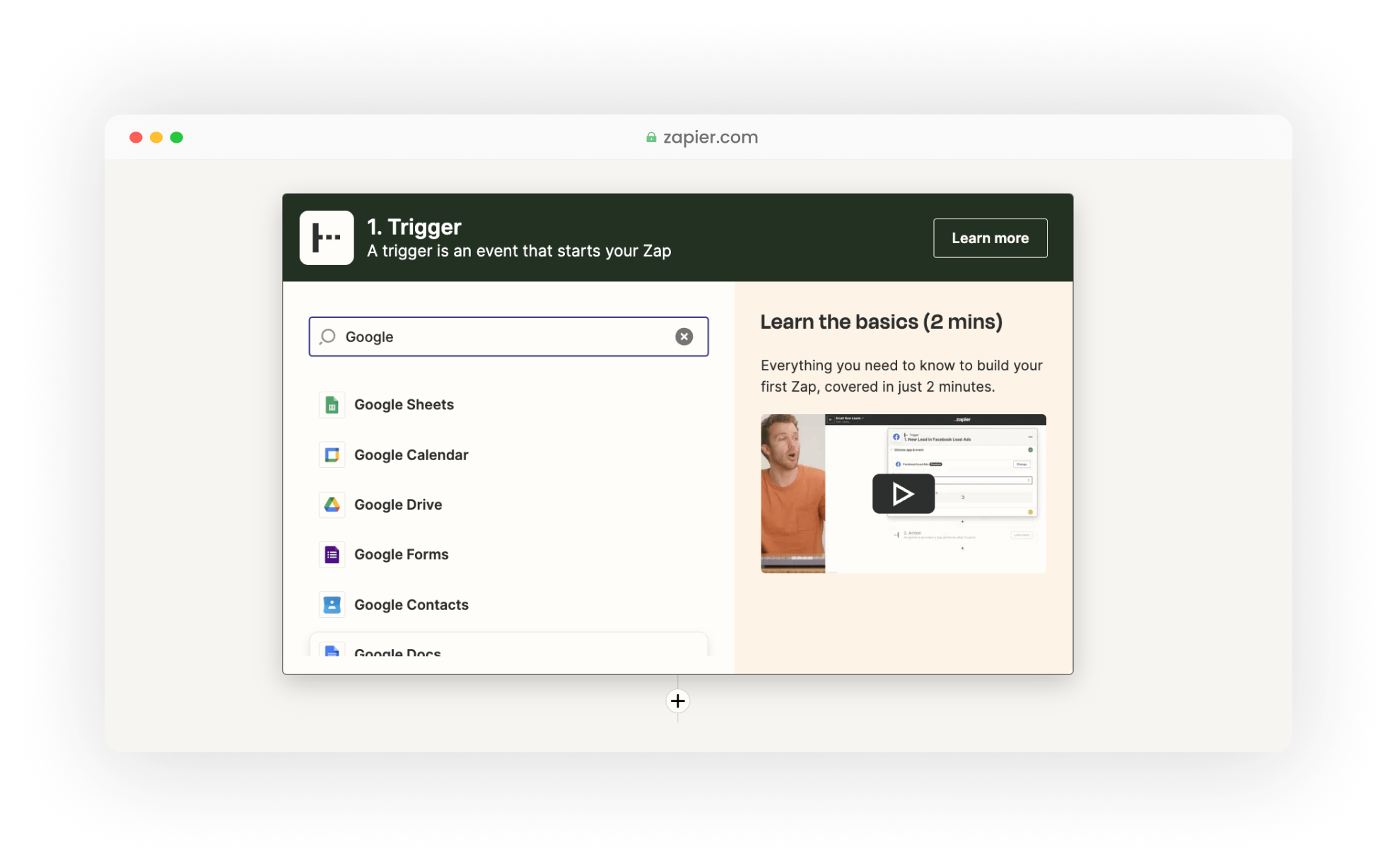
In the search bar, enter the name of the application you want to connect with another application. For example, if you want to connect Gmail to Trello, search for "Gmail" and select it from the results.
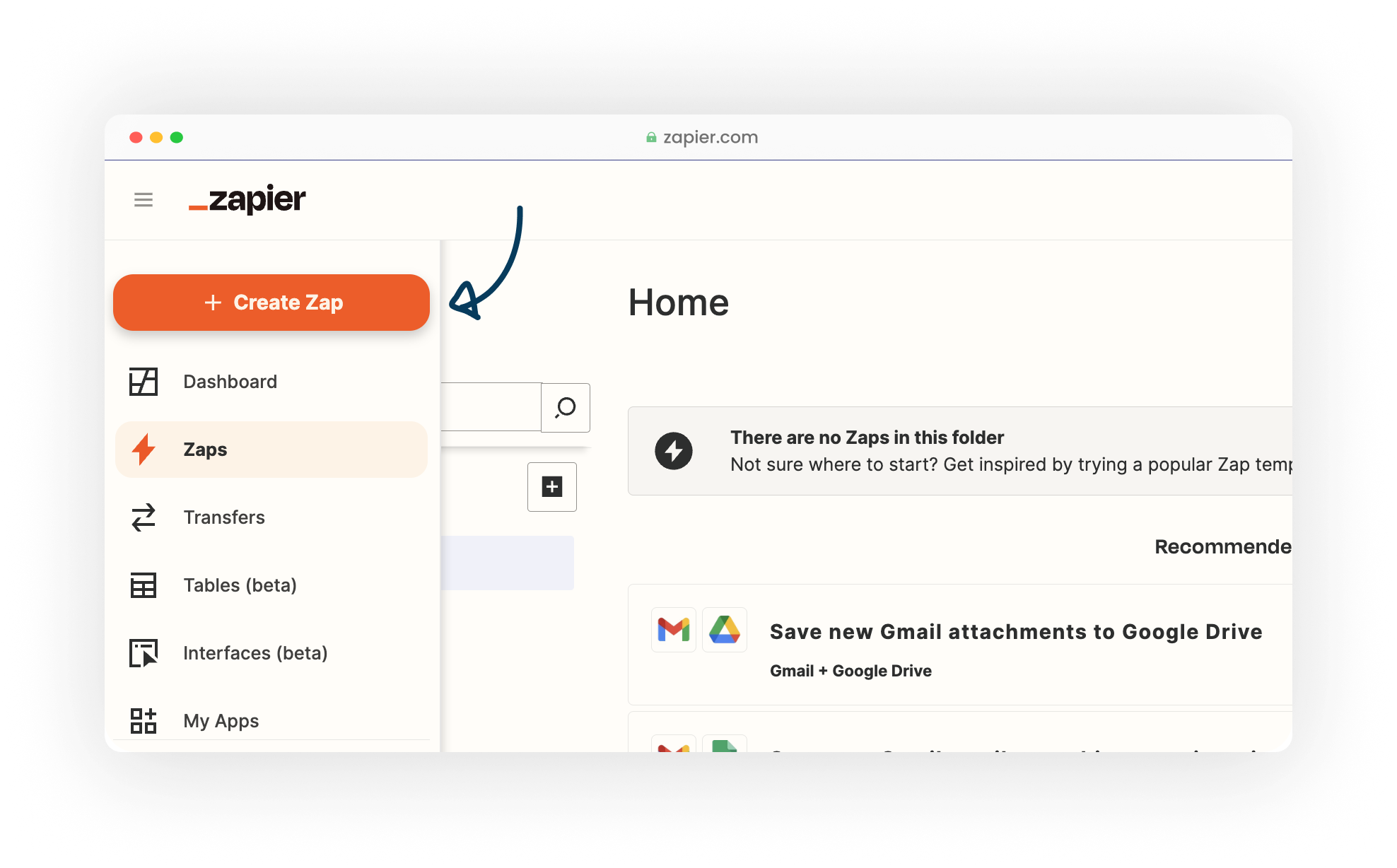
Select the application you want to connect with Hoostr from the list of available applications. In the trigger section, choose the application that will communicate with Hoostr, and in the action section, select Hoostr.
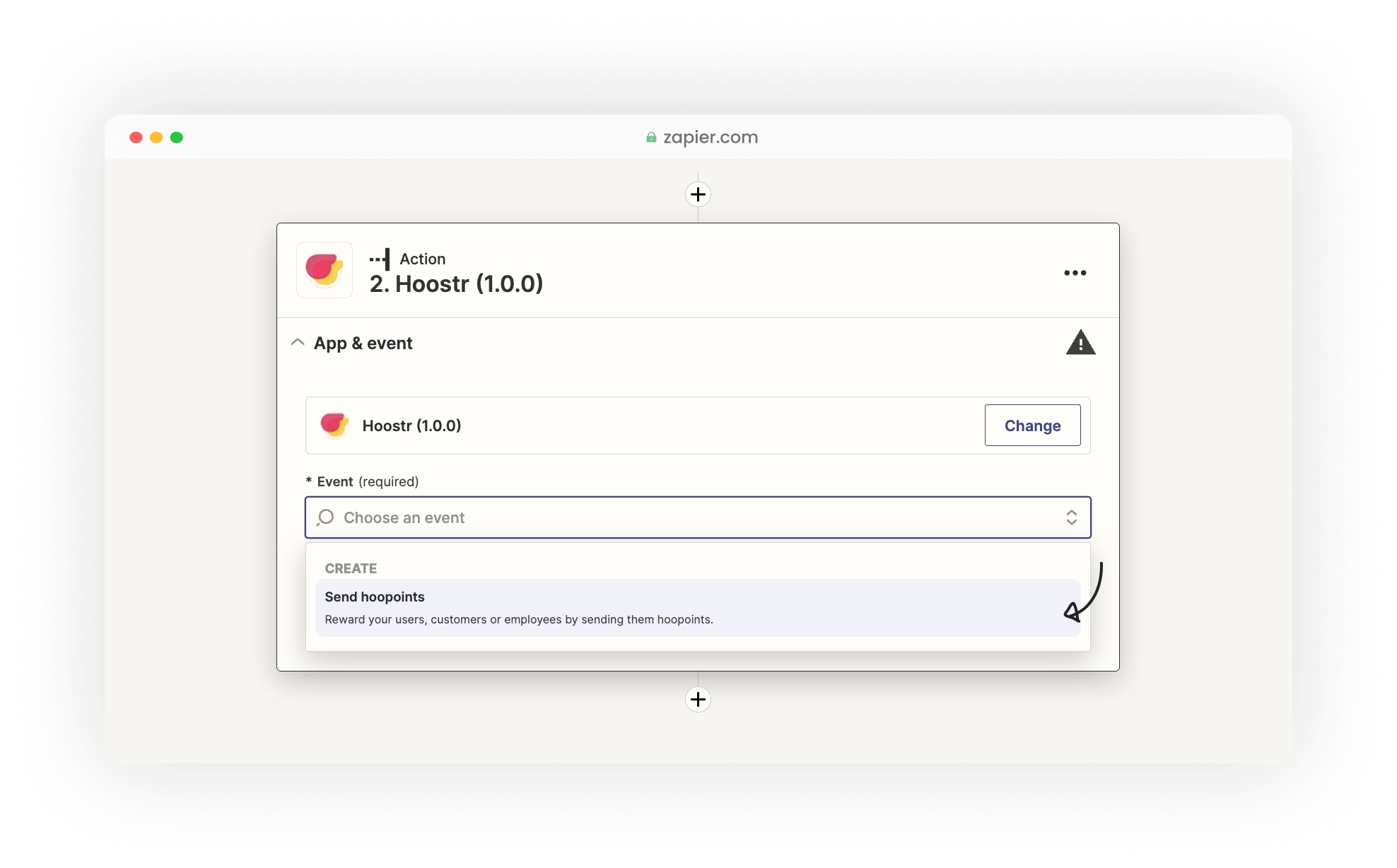
Choose the "send hoopoints" event on Hoostr to automatically send hoopoints. To do this, specify the amount of hoopoints you want to send and the email you want to reward. You can extract this data from the application that triggers the action. For example, you can automatically extract the email from a Google Form.
Follow the specific instructions for each application to authenticate and connect them to Zapier. For Hoostr, you'll need to specify your production API Key (SK_**). To obtain it, please follow the instructions here.
Once both applications are connected, you can proceed to set up the automation, known as a "Zap," between them.
That's it! You have successfully connected two applications on Zapier. You can now create Zaps to automate tasks and workflows between the connected applications.